
Purpose of account values
- Account values are used for the account assignment of orders.
- They help to allocate purchasing costs to particular sections, projects or departments.
- In the shopping cart, users can assign articles directly to an account assignment type and value.
Setting up cost centres
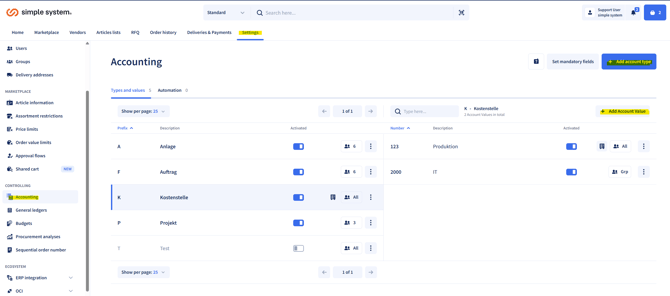
1. Add an account type- First create an account type (e.g. "Cost centres" or "Project").
- Within the account type you define the specific values (e.g. "Marketing", "IT", "Project A").
- You can add as many types and values as you like.
3. Automatic upload
- On request, an automatic upload of the account values can be enabled.
- To do so, contact Support at support@simplesystem.com.
Assigning users
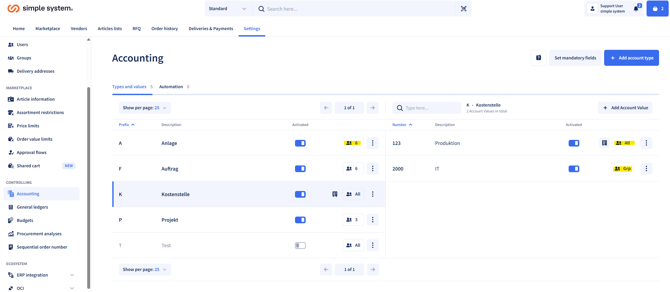
- You can assign account values to users.
- Three options are available:
- All users
- Groups
- Individual users - Important: A mixture of these assignment types is not possible.
Mandatory field option
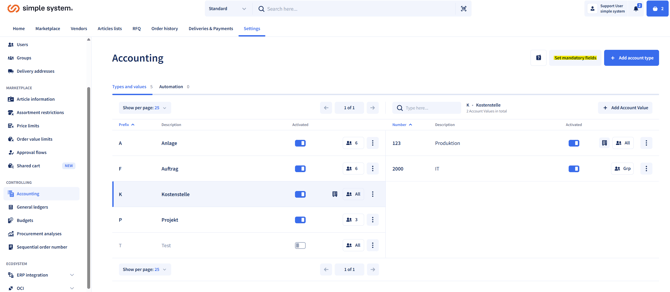
- You can define the selection of an account value as a mandatory field.
- An order is then only possible if the orderer selects an account value.
Editing & management
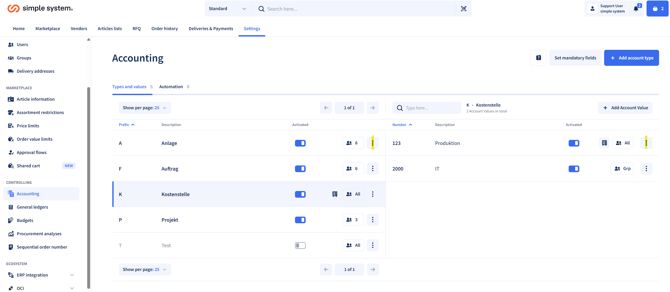
- To edit an account value, manage users or delete an entry, click the three dots to the right of the value.
Summary
- Account values enable the account assignment of orders.
- Setup is done via account assignment types and account assignment values.
- Assignment is possible for all users, groups or individual users (no mixed form).
- The selection can be defined as a mandatory field.
- Management is done via the three-dot menu.
Instructions for administrators