
User overview
-
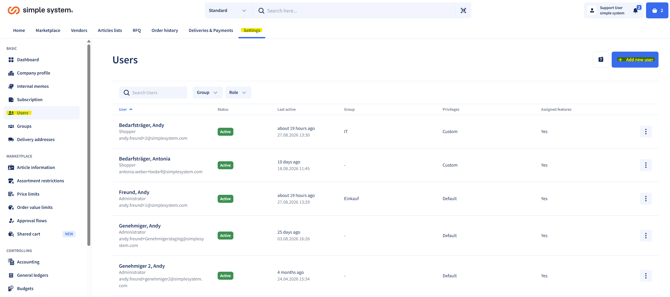
In the Settings > Users section you see all existing users in your account.
-
Via View details you can see a user's individual settings and jump straight to the relevant sections.
-
You can adjust user rights at any time or create new users.
Creating a user
-
Add user: Click “Add user”.
-
Fill in the mandatory fields: Enter the required details such as name, email address and any further mandatory information.
-
Select a rights profile:
-
Shopper: users who can place orders in line with the rights assigned to them.
-
Administrator: users with comprehensive rights to manage the account, edit the settings and view all data in full.
-
-
Optional: copy a user:
-
You can duplicate an existing user.
-
All rights and settings are then transferred automatically to the new user.
-
-
Save: After saving, the new user is immediately visible in the system and receives an invitation to simple system.
Special features
-
There is no limit: you can create as many users in the system as you like.
-
User management is flexible and supports both small teams and large organisations.
Summary
In the Settings > Users section you manage all accounts in your organisation. New users are created via “Add user”, the mandatory fields are filled in and a rights profile is assigned. You can copy users, change rights and add as many people as you like. This keeps your organisation efficient and clearly structured.
Instructions for administrators